TL;DR An accessible login form in React uses a visible label on every input, links each error to its field with aria-describedby, announces sign-in failures from an always-mounted live region, moves focus to the first broken field, and turns its shake animation off under prefers-reduced-motion.
An accessible login form in React needs five things, animated or not: a visible <label> tied to every input, error messages linked with aria-describedby and announced through a live region, focus moved to the first broken field when submit fails, a show/hide password button that says what it does, and an animation that switches off when the user has asked for reduced motion. Get those right and you can keep the shake and the transitions, because the motion stops being the only way the form talks.
Below is the form I use as a base, written for a Next.js App Router project with React 19 and Tailwind v4. I built it in a fresh create-next-app project, and it passes tsc --noEmit and next build. Each section explains one decision.
Placeholders that pretend to be labels are the most common problem in generated login forms. They disappear when you type, they are often low contrast, and assistive tech handles them inconsistently. Use a <label htmlFor> for every field.
A few details in there matter more than they look:
useId() gives each instance unique ids, so two forms on one page (a modal and a page, say) don't collide. It produces the same id on the server and the client, so it doesn't cause hydration mismatches. See the React docs for useId.
autoComplete="username" on the email field and autoComplete="current-password" on the password let password managers fill both. On a sign-up form you'd use new-password instead. The full list of tokens is on MDN's autocomplete page.
type="email" plus inputMode="email" gets mobile users the keyboard with the @ key.
I also put noValidate on the form. The browser's built-in bubbles are accessible, but they can't be styled and they appear one at a time. If you turn them off, you take on the job of announcing errors yourself, which is what the next part does.
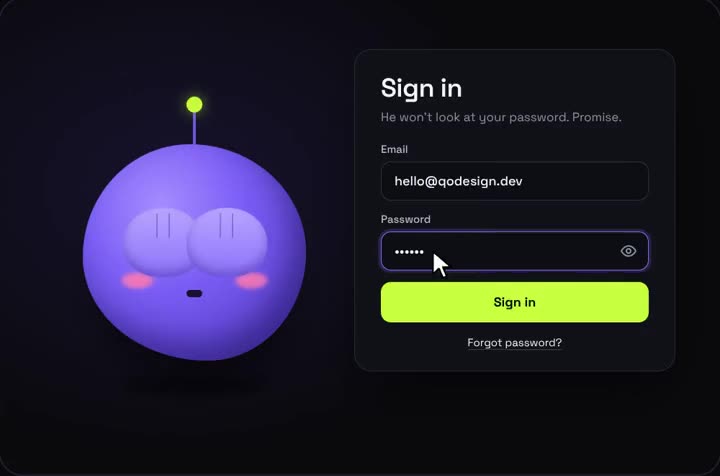
Shy Eyes Login running live. A login mascot that watches you type and covers his eyes for the password.
When a field fails, three things should happen: the input gets aria-invalid, the message appears as text next to it, and the input points at that text through aria-describedby. A screen reader then reads the label, the invalid state and the message when focus lands on the field.
The password field has a permanent hint ("At least 8 characters"), so its aria-describedby always includes the hint id and puts the error id in front of it when there is an error. You can list several ids separated by spaces, and they are read in that order. See MDN on aria-describedby.
Tailwind v4's aria-[invalid=true]: variant styles the red border straight from the attribute, so the visual state and the accessible state can't drift apart.
Field errors are found when the user moves to the field. A failed sign-in ("that email and password don't match") belongs to the whole form, and the user needs to hear it right away. That's a job for a live region:
tsx
{/* Always rendered, so screen readers pick up changes to its text. */}<p role="alert" aria-live="assertive" className="min-h-5 text-sm text-red-700"> {errors.form ?? ""}</p>
The element is in the DOM from the first render and only its text changes. People often get this wrong: if you mount a role="alert" element at the same moment you fill it, some screen reader and browser pairs miss the announcement. role="alert" already implies aria-live="assertive". I keep both because it costs nothing and makes the intent obvious to whoever reads the code next. More in MDN's guide to live regions.
Write messages that say how to fix the problem. "Enter an email like [email protected]" helps more than "Invalid email".
After a failed submit, focus stays on the submit button unless you move it, and a keyboard user has to tab backwards to find the problem. The fix is two refs and one line:
tsx
setErrors(next);if (next.email || next.password) { setShaking(true); // Move focus to the first field that needs fixing. (next.email ? emailRef : passwordRef).current?.focus(); return;}
Because the input's aria-describedby already points at its message, moving focus there makes the screen reader read the label and the error together. You don't need a second announcement for field errors.
The eye-icon toggle is usually an icon with no name, so a screen reader announces "button" and nothing else. Mine uses visible text plus a visually hidden word, so it reads "Show password" or "Hide password":
A short horizontal shake is a nice signal that something failed. It shouldn't be the only signal (the text messages do that work), and it should stop for people who turned on "reduce motion" in their OS. The CSS lives in globals.css:
My first version restarted the animation by changing the form's key. That remounts the form and wipes what the user typed, so avoid it.
When reduced motion is on, the animation: none rule wins and nothing moves. The submit button's press effect uses Tailwind's motion-reduce: variant for the same reason. The media query is documented on MDN: prefers-reduced-motion. If you'd rather run the shake with Motion (Framer Motion), its useReducedMotion() hook reads the same setting in JavaScript.
Once these basics hold, you can add character without hurting anyone. A login where a character covers its eyes while you type the password is a good example: the animation is decoration, and the form under it still follows every rule above. I built one like that, the Shy Eyes login, and a spotlight version built around a desk lamp, the Lamp login. There are more in the animated login forms collection.
If you want something to take apart first, the free pieces come with their full source, and the open-source ones live in the qodesign-free repo.
When you paste a form like this into a Cursor or v0 project and ask for a restyle, tell it to keep the ARIA attributes. Check that aria-describedby and the live region survive the restyle, because nothing looks broken when they're gone.
Most login forms I get back from v0 or Cursor look fine and fail the same handful of checks. The accessibility guides that rank for this topic cover labels and ARIA in general terms, but they rarely touch the password toggle, motion, or what happens with the App Router. Here is what I look for, and the fix in each case:
Mistake
What the user gets
Fix
Placeholder as the only label
No name once they start typing
A visible <label htmlFor>
Error shown in red only
Nothing announced, no reason given
Text message plus aria-describedby
Alert element mounted with its text
Some screen readers stay silent
Keep the live region mounted, change its text
Icon-only eye button
"Button", with no name
Visible or sr-only text, aria-pressed
Show button without type="button"
Clicking it submits the form
Add type="button"
Shake as the only error signal
Nothing for screen reader users, motion for people who turned it off
Nothing about the rules. If you submit with a Server Action and React 19's useActionState, the error comes back as returned state instead of a setErrors call. Render that message into the same always-mounted live region, keep the field errors tied to their inputs with aria-describedby, and move focus in an effect after the state changes, since the action runs outside your click handler. The pending flag from useActionState is what disables the button and switches its text to "Signing in…". The form markup stays a client component; the action itself can live in a server file.
I make animated React components at qodesign, including a few login forms like the ones above.
Yes, if it is a real button with a text name such as "Show password", it has type="button" so it doesn't submit, and it exposes its state with aria-pressed. An icon with no text is the version that fails, because a screen reader only hears "button".
Use both, for different jobs. Field errors belong to their input through aria-describedby, so they are read when focus moves there. A form-level failure like wrong credentials goes in one live region that is already in the page, so it is announced once without the user moving.
You can, but don't wrap the whole error list in one live region, or the screen reader repeats every message on each change. Tie each field error to its input with aria-describedby, move focus to the first invalid field, and keep aria-live for the single form-level message.
Keep a boolean in state and switch the input's type between "password" and "text". Put the toggle right after the input in the tab order and give it a clear label, so keyboard and screen reader users can find it and know what it does.