# How to Animate the shadcn Login Form Block (Next.js + Tailwind)
> Keep the shadcn login block as it is and add four small motions: a staggered rise on load with a Tailwind v4 keyframe and a per-row delay, a shake keyed to each failed attempt from useActionState, a pending button driven by useFormStatus, and a check that draws in on success. Put every animation behind motion-safe so reduced motion gets a static form.
- URL: https://qodesign.dev/blog/animate-shadcn-login-form-block
- Author: Teodor Avadani (https://qodesign.dev/blog/author/teodor-avadani)
- Published: 2026-10-22
- Updated: 2026-10-22
- Category: Animation
- Publisher: qodesign (https://qodesign.dev), a shop of animated React + Tailwind CSS components for Next.js, each sold with its full source code and an AI prompt.
The shadcn login blocks are a good start: a card, two inputs, a button, sensible spacing. Install `login-01` in a Cursor or v0 project and you have a working sign-in page in a minute. You also have the same sign-in page as thousands of other apps, and it gives no feedback beyond a red line of text when the password is wrong. I make animated React components at qodesign, and login screens are where small motion pays off fastest, because every user sees them.
This post keeps the block's markup and adds four motions with Tailwind v4 keyframes. Nothing new to install.
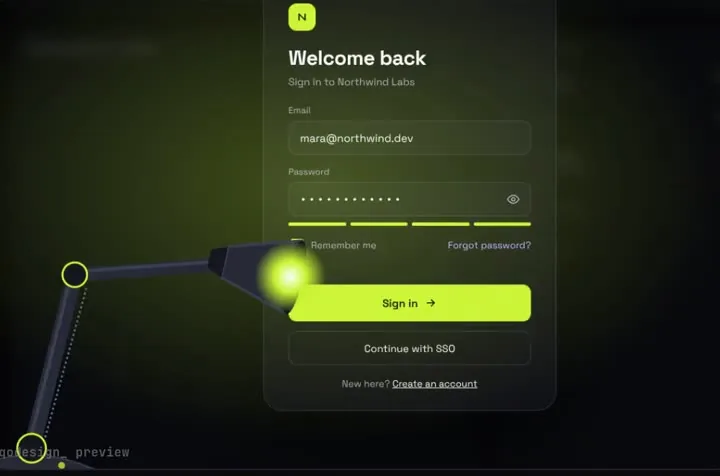
That is the [Spotlight Lamp Login](/components/lamp-login), one of the animated login pages on qodesign. The steps below get a plain shadcn form most of the way to that kind of feel.
## 1. Define the keyframes once
Add these to `app/globals.css`. In Tailwind v4, a `--animate-*` variable inside `@theme` creates the matching `animate-*` utility.
```css
@theme {
--animate-rise: rise 420ms cubic-bezier(0.2, 0.8, 0.2, 1) both;
--animate-shake: shake 360ms cubic-bezier(0.36, 0.07, 0.19, 0.97) both;
--animate-draw: draw 420ms ease-out 120ms both;
@keyframes rise {
from { opacity: 0; transform: translateY(8px); }
to { opacity: 1; transform: translateY(0); }
}
@keyframes shake {
10%, 90% { transform: translateX(-1px); }
20%, 80% { transform: translateX(3px); }
30%, 50%, 70% { transform: translateX(-6px); }
40%, 60% { transform: translateX(6px); }
}
@keyframes draw {
from { stroke-dashoffset: 24; }
to { stroke-dashoffset: 0; }
}
}
```
`both` keeps the first frame applied during the delay, so rows don't flash in before their turn.
## 2. Stagger the rows on load
Give each row of the form the rise animation with a growing delay. An arbitrary property keeps it inline:
```tsx
const rise = "motion-safe:animate-rise";
```
Sixty milliseconds between rows reads as one motion. Past about 100ms the form starts to feel like it is loading. `motion-safe:` means the class only applies when the person has not asked for reduced motion.
## 3. Shake the card when sign-in fails
The block ships as a client form. Wire it to a server action with `useActionState`, and have the action return an attempt counter with each error:
```tsx
"use server";
export type LoginState = { error?: string; attempt: number; ok?: boolean };
export async function login(prev: LoginState, formData: FormData): Promise {
const email = String(formData.get("email") ?? "");
const password = String(formData.get("password") ?? "");
const ok = await checkCredentials(email, password); // your auth call
if (!ok) return { error: "That email and password don't match.", attempt: prev.attempt + 1 };
return { ok: true, attempt: prev.attempt };
}
```
On the client, key the shaking wrapper on the attempt number. A new key remounts the element, so the animation plays again on every failure, including the second and third:
```tsx
"use client";
import { useActionState } from "react";
import { login, type LoginState } from "./actions";
const initial: LoginState = { attempt: 0 };
export function LoginForm() {
const [state, action] = useActionState(login, initial);
return (
);
}
```
Two details here. The error line has a fixed `min-h-5`, so the button doesn't jump down when the message appears. And `aria-live="polite"` reads the message to screen reader users, who can't see the shake. The shake is a hint for sighted users; the text carries the meaning.
Remounting also resets the inputs, which is what React does after a form action anyway. If you want the email kept, return it in the state and pass it as `defaultValue`.
## 4. A pending button that doesn't change size
`useFormStatus` has to live in a component rendered inside the form:
```tsx
"use client";
import { useFormStatus } from "react-dom";
import { Button } from "@/components/ui/button";
export function SubmitButton({ done }: { done: boolean }) {
const { pending } = useFormStatus();
return (
);
}
```
The label fades out but stays in the layout, and the spinner and check sit on top of it with `absolute`. The button keeps its exact width through all three states, which is the difference between a polished button and one that twitches.
The check uses `strokeDasharray="24"` with the `draw` keyframe from step 1, so it draws itself in. For more on that trick, see the [animated SVG checkmark post](/blog/animated-svg-checkmark-react-tailwind).
## 5. Redirect after the check
If the action redirects straight away, nobody sees the check. Return `ok: true`, then redirect on the client after a short pause:
```tsx
useEffect(() => {
if (!state.ok) return;
const t = setTimeout(() => router.push("/dashboard"), 450);
return () => clearTimeout(t);
}, [state.ok, router]);
```
Keep the pause under half a second. People notice the check, and nobody feels held up.
## What to leave alone
- Don't animate the input borders on every keystroke. Focus rings should appear at once.
- Don't block typing while the entrance plays. The rows are interactive from the first frame, since the animation only changes opacity and transform.
- Don't shake on a network error. Shake means "wrong details". A failed request should say so in words and keep the inputs as they were.
## Going further
A shake and a check make the form feel responsive. If the login page is part of your brand, it can do more. The [Shy Eyes Login](/components/shy-eyes-login) has a character that follows the email field and covers his eyes for the password, and the [Spotlight Lamp Login](/components/lamp-login) lights each field with a desk lamp. Both come with a PROMPT.md so Cursor or v0 can connect them to your auth. For accessibility details on animated forms, read the [accessible animated login form guide](/blog/accessible-animated-login-form-react). And if you want to try a qodesign piece first, the [free kit](/free) has the free component and the open-source ones.
## FAQ
### How do I add animation to a shadcn login form?
Keep the block's markup and add CSS animations with Tailwind. Define keyframes in globals.css under @theme so you get animate-* utilities, give each form row a rise animation with a growing animation-delay, and wrap every class in motion-safe so reduced motion users get a static form.
### How do I shake a form when the password is wrong?
Return an attempt counter from your server action with useActionState and use it as the React key on the wrapper around the card. Each failure changes the key, the element remounts, and the shake animation plays again.
### How do I show a loading state on a shadcn Button?
Put the button in its own client component inside the form and read pending from useFormStatus. Fade the label to opacity 0 instead of removing it, and place the spinner on top with absolute positioning so the button keeps its width.
### Does the shadcn login block work with Next.js server actions?
Yes. Pass the server action to useActionState and use the returned action as the form's action prop. The inputs need name attributes so the action can read them from FormData.